Saturday, May 23, 2015
ঘুরে এলাম বান্দরবন (পর্ব - ১)
সেমিস্টার ব্রেক শুরু হলো। হাতে অল্প কিছুদিন সময়। আগে থেকেই কোথাও যাওয়ার প্ল্যান ছিলো। মাঝে থেকে এক বন্ধু খাগড়াছড়িতে পল্টি মারলো। বাকি সবাই মিলে চটজলদি প্ল্যান করে ফেললাম বান্দরবন যাওয়ার। আমাদের সাথে ছিলো এক চাইনিজ (চাকমা) বন্ধু হেনড্রিক্স। তার ভালো নাম শুভ চাক। সে আগেই চলে গেলো বান্দরবন। আমরা চারজন - আমি, সুফি (তাফসীর), মাঝি (প্রিতম) আর তন্ময় রওনা দিলাম ঢাকা থেকে। রাত ১০টার বাস। সবাই কলেজের বন্ধু।Monday, March 30, 2015
USB Drive Size Reduced After Making it Bootable [SOLVED]
Yesterday I booted my 32GB pendrive to make Hacintosh. After making the pendrive bootable I've found that it's size has been reduced to 5.35GB from 32GB. The same problem occured when I made it bootable to install Ubuntu. Here's the solution for this problem. I forget everything and then I've to search the entire web. So I'm writng here.Tuesday, March 3, 2015
How to update Firefox OS 2.0 to 3.0 (Nightly) with Windows
Last week I wrote about How to update Firefox OS 1.3 to 2.0 with Windows. Updating Firefox OS is much easier with Linux OS. If you're a linux user and feel comfortable with Linux then use it to update. This tutorial is for the Windows users.I'm using Firefox OS Developer Preview device Flame. This process may not work with other Firefox OS devices. However, downloading base image of other developer preview phones from the manufacturers websites (eg. Geeksphone) & following this tutorial may work.
NOTE: If you brick your device I will not take any responsibility. Charge your device battery upto minimum 50% before updating. Disable screen lock before starting. Simply go to Settings > Screen Lock and tap to disable lock screen or passcode lock.
Please before proceed make sure that you've updated your device to the latest stable base image. Follow this tutorial HERE if your OS version is below 2.0. Go to Settings >> Device Information to check your current version.
1. Plug your device into your computer with a USB cable.
2. Enable USB Debugging:
To enable USB Debugging go to your phone's Settings > Device Information > More Information > Developer and then Tick "Enable USB Debugging".
3. Download Base Image:Choose a build to install (found on http://ftp.mozilla.org/pub/mozilla.org/b2g/nightly/). You'll want one of the following:
- Production builds (including locales)
- Latest master builds (currently 3.0)
- Latest v2.2 builds
- Latest v2.1 builds
- Latest v2.0 builds
- Engineering builds (with test apps and only pseudo-locales)
- Latest master builds (currently 3.0)
- Latest v2.2 builds
- Latest v2.1 builds
- Latest v2.0 builds
I've chosen the first one. Nightly v3.0
Go to the directory and download
b2g-XX.XX.en-US.android-arm.tar.gz and gaia.zip both three files. Extract them in the same folder in your PC. 4. Download other tools:Download the shallow flash script and save it in the same directory as the above two files: follow the link, press the Raw button, then use your browser's save functionality (right click & select save page as...) to save the page directly as
shallow_flash.sh.Also download the shallow_flash.bat windows script and install Cygwin which provides a Linux-like command environment on Windows.
Make sure that all the tools - Shallow flash script, shallow flash.bat, cygwin & base image files are in the same folder.
5. Now double click the shallow.bat file. A command window will appear and ask your permission. Write "y" and hit Enter. ('y' for YES & 'n' for NO). Then the install will start. Your phone may restart couple of times during the process.
Have a cup of coffee. And then you'll find that you're device is updated with the latest nightly build.
OMG! I bricked my device:If you brick your device by doing the above methods, then relax. You can get back to your old OS version with recovery mode. Just scroll through this article (Sorry, I can't simplify that for you): https://developer.mozilla.org/en-US/Firefox_OS/Phone_guide/Flame/Updating_your_Flame
and start reading from "Fastboot Mode".
If you face any kind of problems during updating your device, please feel free to comment on this post. I'll try my best to solve them.
Thursday, February 26, 2015
Differences between Firefox OS 1.3 and 2.0
Firefox OS is an open-source operating system for smartphones and tablets developed by Mozilla. It is one of the newest operating systems. I've recently updated my Firefox OS Device Flame to 2.0 version. It was shipped with Firefox OS 1.3. I've noticed lots of changes in the user interface & performance. Now I'm writing about them. |
| All the screenshots are captured in this Firefox OS Developer Preview Device - Flame |
Lockscreen:
 |
| Firefox OS v1.3 | Firefox OS v2.0 |
I can notice a slight change in the lockscreen. The unlock & camera picture is changed in version 2.0. Clock font size has increased. Notification icon turned white from blue.
Homescreen:
 |
| Firefox OS v1.3 | Firefox OS v2.0 |
Major changes in the homescreen can be seen after updating Firefox OS 1.3 to 2.0. Previously, homescreen contained all the apps which can be accessed by swiping the screen horizontally. It also had a tray for apps at the bottom. You could find Adaptive search if you swipe to left.
Apps are set vertically in the newer version. Search option is on the same screen. Apps are divided by two white lines. Many users will find it difficult to quickly swipe and open apps. Icons of preinstalled apps like Phone,Contacts,Messages,Gallery,Music etc are also changed. Icons are now bigger in size.
Notification Bar:
 |
| Firefox OS v1.3 | Firefox OS v2.0 |
Notification bars are not changed that much. I can notice change of the fonts of date. Beside wi-fi there was a box-like icon which probably was the network icon. It is now changed into letter E (EDGE). If you use 3G the icon will be changed to '3G'.
In 1.3 version, pressing wi-fi icon opened the wi-fi settings and then turn the wi-fi on or off. But in 2.0 version it does open the settings window.
Phone:
 |
| Firefox OS v1.3 | Firefox OS v2.0 |
Heavy changes in design can be noticed in Phone app. Old fonts are changed into more smooth fonts. Buttons are now oval shaped.
Messages:
 |
| Firefox OS v1.3 |
Very few changes on the messages app can be seen after updating to 2.0. Fonts are changed and there is a outgoing mail button instead of 'Send' button.
 |
| Firefox OS v2.0 |
However, after switching to capital letters the keyboard does not change at all. But the switching works. It feels kind of awkward. This problem can be found in both versions of Firefox OS. Still there is not any copy-paste option in v2.0 like the version 1.3
Contacts:
 |
| Firefox OS v1.3 | Firefox OS v2.0 |
Almost no changes in Contacts app.
Browser:
 |
| Firefox OS v1.3 | Firefox OS v2.0 |
Browser of the new version contains the option to change search engines. Except this, everything is the same.
Camera:
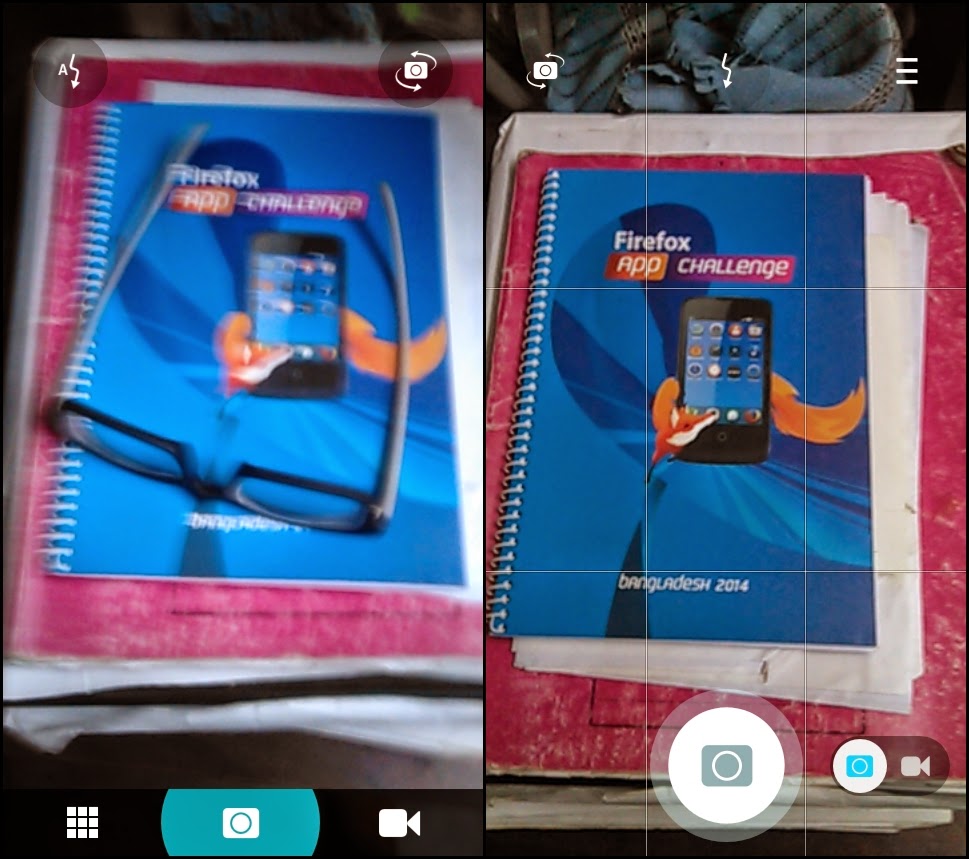 |
| Firefox OS v1.3 | Firefox OS v2.0 |
The Camera app of the version 2.0 is more enhanced. Options for HDR, Self-timer and grid lines are added. Camera buttons are also changed.
Calendar:
 |
| Firefox OS v1.3 | Firefox OS v2.0 |
The Calendar app of the newer version of Firefox OS has more attractive interface.
Marketplace:
 |
| Firefox OS v1.3 | Firefox OS v2.0 |
Marketplace looks the same in both versions.
Music:
Music app seems almost the same except changes in fonts and some icons.
 | ||
|
 |
| Firefox OS v1.3 | Firefox OS v2.0 |
Pressing and holding the home button will show opened applicatications. In version 1.3, you have to swipe left to right in order to explore opened apps. But in version 2.0, you have to swipe right to left in order to do that.You can now swipe the screen left or right to open other apps while you're using an app.
Incoming & Outgoing Calls:
 |
| Firefox OS v1.3 |
The incoming and outgoing call screens are more sleek in design in the new v2.0.
 |
| Firefox OS v2.0 |
Settings:
 |
| Firefox OS v1.3 |
Settings for Homescreen,Navigation,Find my device and operator services are added to Firefox OS v2.0
'Find my device' service, which is used to locate, remotely call or erase phone data are available on v2.0
 |
| Firefox OS v2.0 |
Performance:
Performance boost is highly noticeable after updating to v2.0. In v1.3, OS crashed and the phone restarted for several times. Apps like Facebook, Soundcloud, Youtube crashed after running for more than 7 or 10 minutes. In v2.0, these problems are reduced.
That's it for today's review & differences of Firefox OS v1.3 & 2.0. I will write again after I update my device to v3.0.
Wednesday, February 18, 2015
How to update Firefox OS 1.3 to 2.0 with Windows
I have Flame - a Firefox OS Developer Preview device. It was shipped with Firefox OS 1.3 version. After using it for few days I wanted to update my OS. I went to the Mozilla Developer Network (MDN) Site. However, the processes they described there looked a little complex for me. So, now I am writing about the detailed process of updating the device.
I am using Windows 8.1 and my device is Flame. This may not work with other devices. Follow the processes step by step.
NOTE: If you brick your device I will not take any responsibility. Charge your device battery upto minimum 50% before updating. Disable screen lock before starting. Simply go to Settings > Screen Lock and tap to disable lock screen or passcode lock.
1. Plug your device into your computer with a USB cable.
2. If windows could not detect your device, you have to download and install the device driver.
Download windows driver from HERE: cds.w5v8t3u9.hwcdn.net/Alcatel_USB_Driver_Q_4.0.0_2013_11_11_noinstall.zip
After downloading extract the zip file. Go to the extracted folder and double click on
DriverInstaller.exe executable. You may receive a warning at this point that the executable is from an unknown publisher. If so, select the 'Yes' button and the executable will be launched. Click on the install button to start installing.Sunday, February 15, 2015
বন্ধু কে?
" ক্লাসে সবসময় ভালো ছাত্রদের সাথে বসবা। তাদের বন্ধু বানাবা। তাইলে রেজাল্ট ভালো হবে। "এ কথাটি বাবা-মা বা কোন মুরুব্বীর কাছে ছোটবেলায় শোনে নাই এমন মানুষ খুব কমই খুজে পাওয়া যাবে। ছোটবেলা থেকেই আমাদের মাথায় ঢুকিয়ে দেওয়া হয় যে বন্ধু ভালো হলে তুমিও ভালো হবে। খারাপ বন্ধু জুটলে জীবন বরবাদ, আর ভালো বন্ধু জুটলে সেইরাম উজ্জ্বল ভবিষ্যৎ।
স্কুলের ক্লাসে দু'টি ভাগ হয়ে যায়।
এক ভাগ হলো ক্লাসের ফার্স্ট বেঞ্চে বসা ভালো স্টুডেন্ট।
এক ভাগ হলো লাস্টের বেঞ্চে বসা খারাপ স্টুডেন্ট।
Tuesday, December 16, 2014
Random Quiz Maker in C Language (Course Project)
It is a project that we have shown in our CSE115 C programming course of North South University.You can find the project slides HERE
Questions.txt file should be placed in the project folder directory.
Source Code:
#include <stdio.h>
#include <stdlib.h>
#include <time.h>
#include<graphics.h>
#include<conio.h>
#include<dos.h>
int main()
{
system("COLOR AC");
printf("\n\n\t\t\t***************************");
printf("\n\t\t\t**** Random Quiz Maker ****");
printf("\n\t\t\t***************************");
printf("\n\n\t\t\t***************************");
printf("\n\n\t\tWelcome to the random quiz maker program.");
printf("\n\t\tPlease be patient during the process.\n");
printf("\n\n\t\t\t**** Random Quiz Maker ****\n");
printf("\n\tPlease input your answer by inserting character value of the number:");
printf("\n\n\t\t\t**** Random Quiz Maker ****\n");
printf("\n");
int i,j,random_question[20],k,flag,random;
double exam_score=0, final_score;
char students_answer;
struct exam
{


